

On this page
Designed a high-security exam environment serving 200+ students on 48 shared devices. This project leverages Microsoft Intune and Azure Storage to deliver strict device hardening, centralized data isolation, and automated session wiping to guarantee exam integrity.
Project Overview
Hardware Constraint: Optimized the use of 48 shared laptops to support 200+ students in rotating groups. The architecture used generic accounts with a strict 1:1 user-to-device mapping to enable rapid turnover between exam sessions without requiring device re-provisioning.
Security: Devices maintain network connectivity for management traffic but strictly enforce a restricted environment. Intune Configuration Profiles explicitly block all web browsers (Edge, Chrome) and unauthorized executables, whitelisting only
wordpad.exeand essential printing services.Data Isolation: Implemented a secure submission repository using Azure Files. Custom permissions (ACLs) allow students to view and save changes to their specific exam template, but explicitly deny them the ability to delete, rename, or create new files.
Session Volatility: Developed custom PowerShell automation triggered immediately upon logoff. This script recursively purges local user profile data (Documents, Desktop), ensuring a sanitized environment for the subsequent user.
Disclaimer
This documentation reflects a live project implemented for an educational client. Sensitive data (Tenant IDs, Usernames, Serial Numbers) has been removed or replaced with generic placeholders.
1. Architecture & Tech Stack
The solution uses a cloud-native approach to minimize on-premise infrastructure while maintaining strict control.
MDM - Intune - Enforces 100% compliance across 48 devices and executes platform scripts.
Identity - Entra ID - 48 accounts (e.g., exam-01) with 1:1 mapping for isolation.
Storage - Azure Files - Secure SMB share with ACLs where Modify is "Not set" to block deletion.
Security - Config Profiles - Blocks browsers, disables right-click, and restricts File Explorer.
2. Identity & Access Management
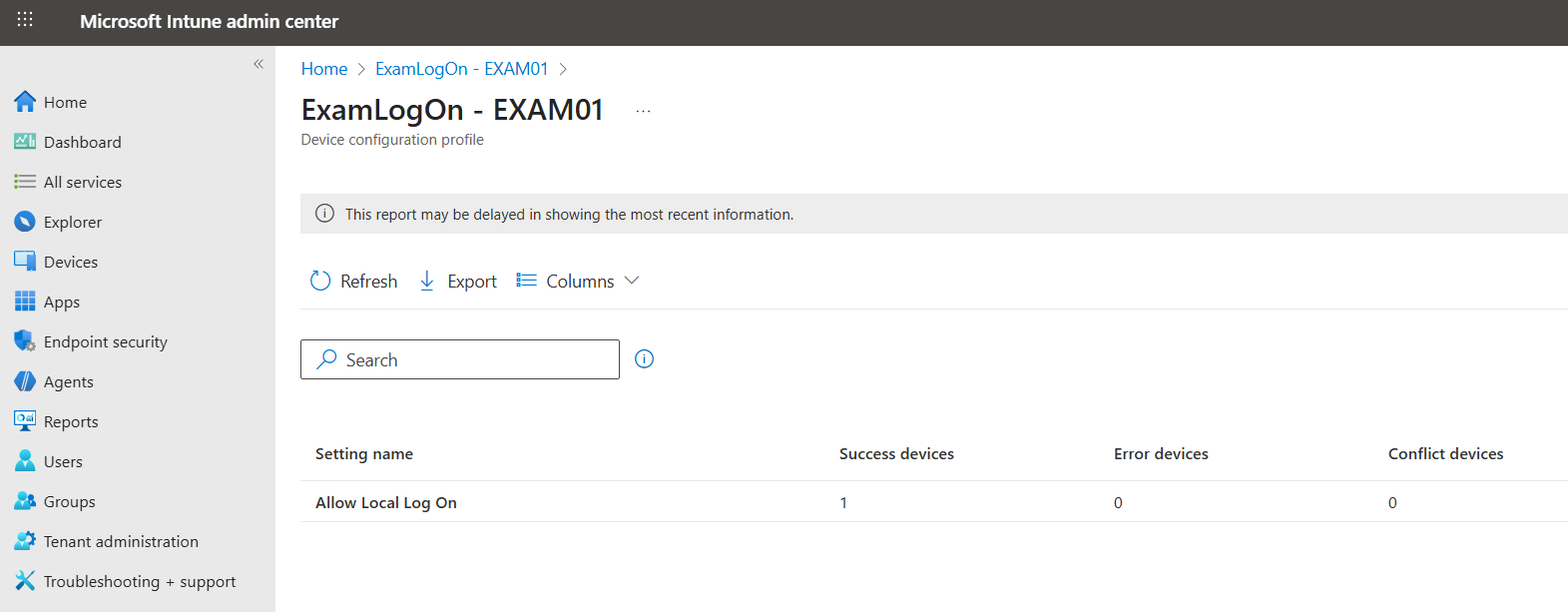
Instead of student-specific credentials, I implemented a 1:1 Device-to-User Mapping strategy to ensure strict control over which physical device was being used.
Created 48 generic accounts (e.g.,
ExamUser01,ExamUser02).Enforced "Logon Locally" rights via Intune to restrict
ExamUser01to strictly sign in toLaptop01.
Why This Matters
This prevents "Lateral Movement." If a student attempts to sign into a neighbor's computer using their assigned credentials, authentication fails immediately.
3. Device Hardening (Intune)
The primary objective was to create a secure, "Kiosk-style" environment that restricted user activity to authorized applications only.
3.1 Security & Restriction Architecture
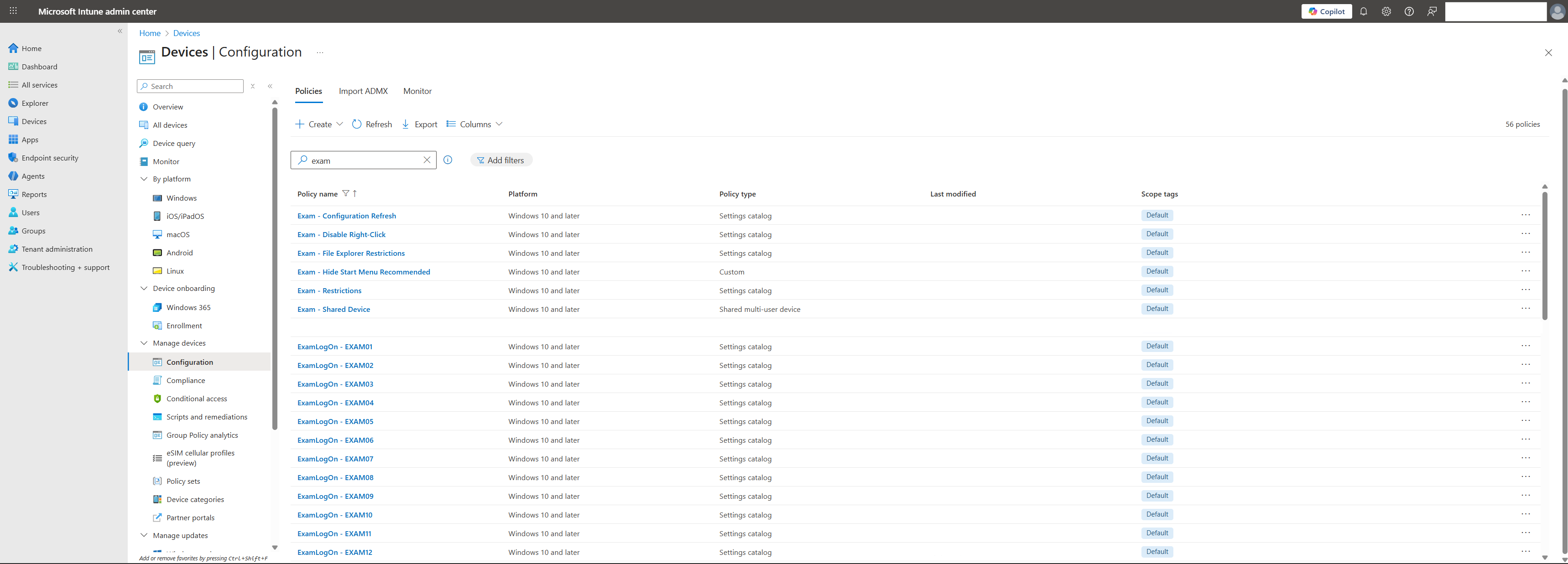
I deployed a Device Configuration Profile (Exam - Restrictions) targeting the All Exam Laptops - Dynamic group:
Administrative Templates: Disables high-risk areas like the Command Prompt and Control Panel.
Connectivity & Lock: Restricts Bluetooth/Wi-Fi profile creation and enforces strict session timeouts.
UI & Experience: Removes "bloatware" and web-search from the Start menu.
Settings Catalog: Explicitly disables Right-Click and implements File Explorer Restrictions.
The Result
By utilizing the Settings Catalog and Shared Device profiles, I achieved a 100% success rate across all 48 devices . This ensured that every student encountered an identical, immutable environment where only wordpad.exe and essential spooler processes were operational.
3.2 Azure Storage & Permissions
The challenge was allowing students to save their work without the ability to delete it.
3.3 The ACL Strategy (The "Drop Box")
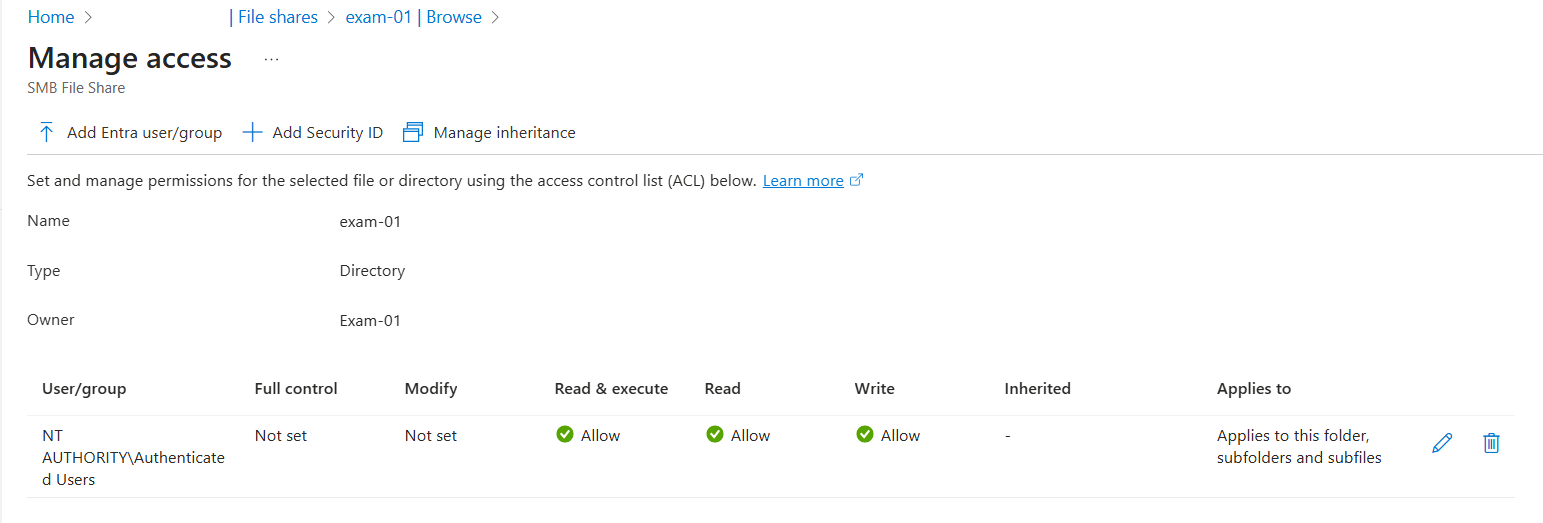
I configured a custom Access Control List (ACL) on the Azure File Shares for the NT AUTHORITY\Authenticated Users group. This ensures that while the Exam_Template.rtf is editable, the directory integrity remains protected.
Allow:
Read & execute,Read, andWrite.
(Students can open the template, type answers, and save their progress)Not Set (Restricted):
ModifyandFull control.
(Restricts deleting files, renaming the template, or creating unauthorized files)
The Result
A student cannot accidentally or maliciously delete their exam paper once saved. They can edit the contents of the template, but because Modify is not granted, the file structure is immutable.
4. Directory Structure & Deployment
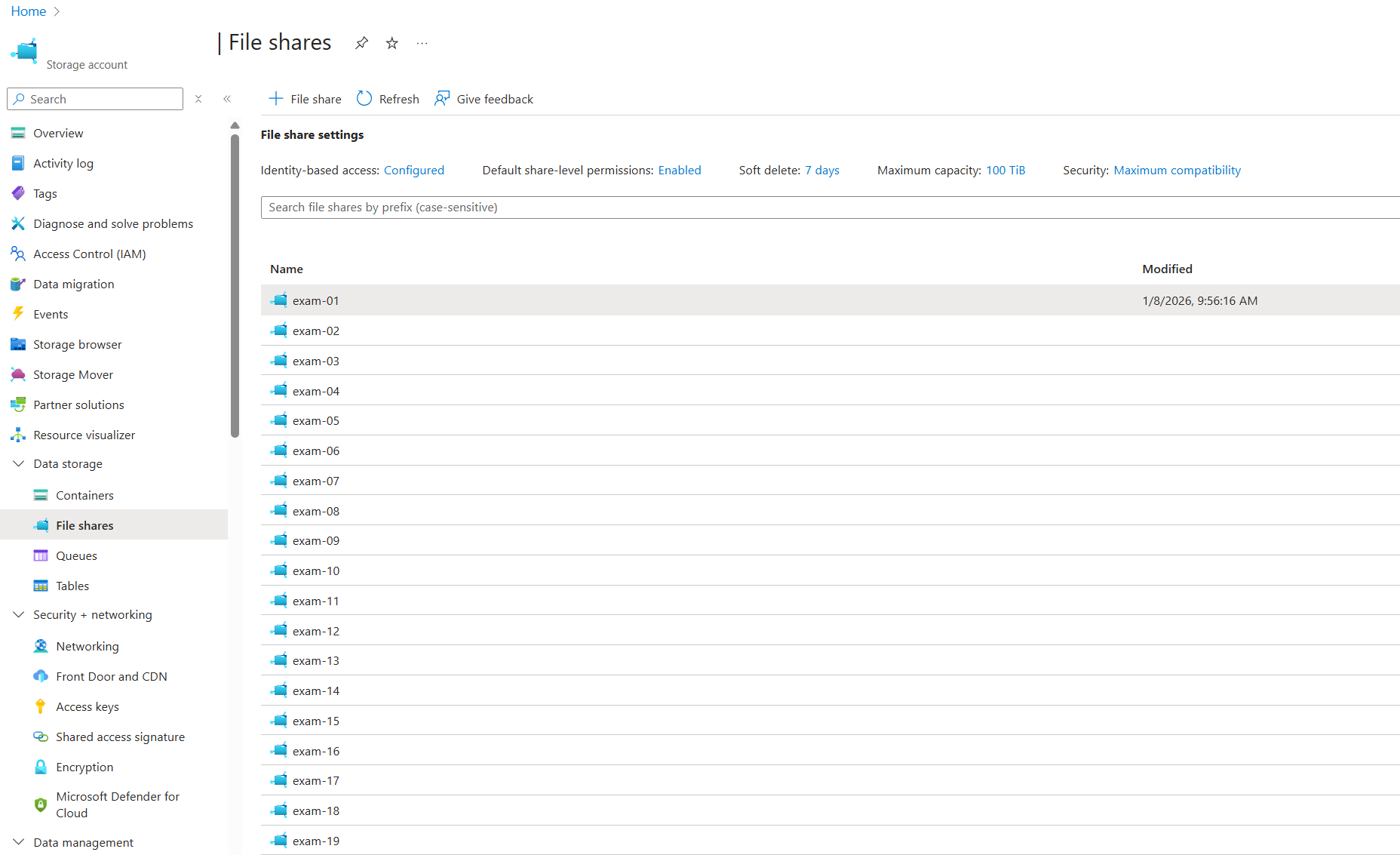
To provide a seamless user experience, each Azure File Share is automatically mounted as a network drive on every exam device. This ensures that the storage appears as a local folder to the student, while the backend maintains strict isolation between users.
The image below shows the 48 individual folders created in the share to ensure each student has a dedicated, isolated workspace.
5. Automation & Intune Scripting
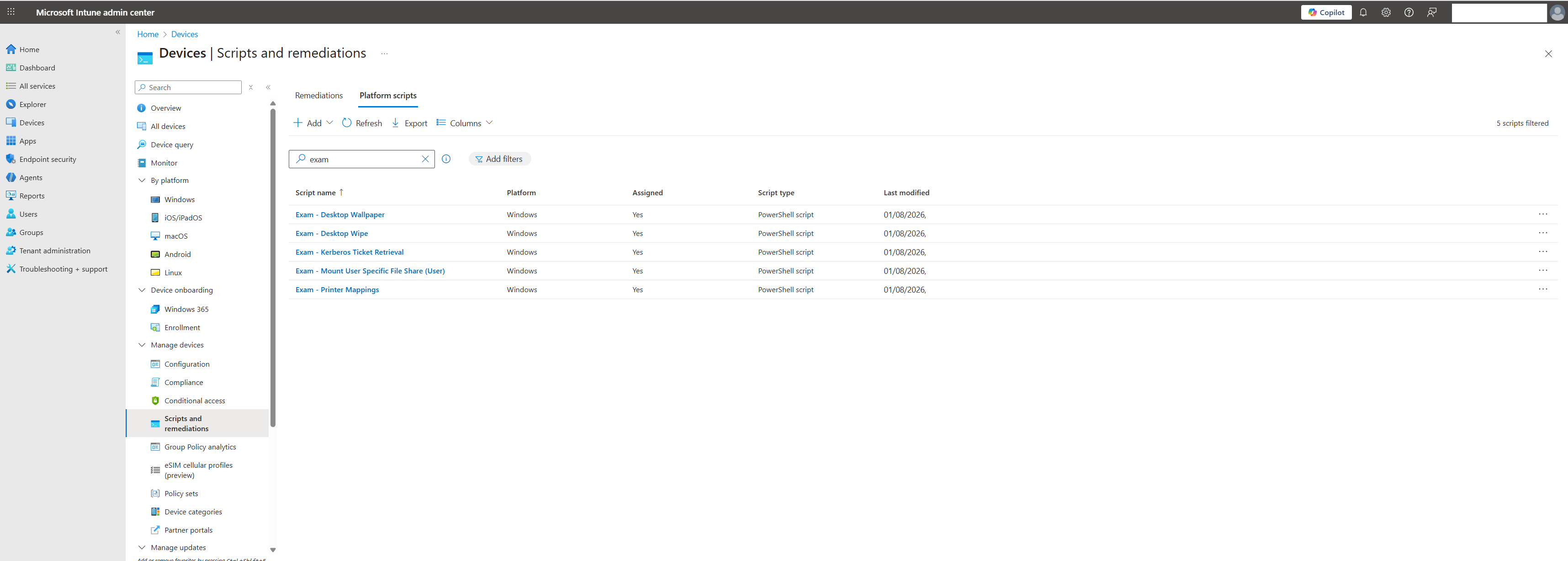
To ensure every exam device was configured identically and ready for use without manual intervention, I utilized Microsoft Intune Platform Scripts. This PowerShell-based automation allowed for the rapid deployment of environmental settings across all 48 devices simultaneously.
5.1 PowerShell Automation Suite
I developed and deployed five core scripts to handle everything from visual branding to critical backend connectivity:
Exam - Mount User Specific File Share (User): The primary script responsible for mapping the Azure File Share to each device as a network drive, as detailed in the previous section.
Exam - Desktop Wipe: A "clean slate" script that clears the desktop of any existing files or unauthorized shortcuts before the exam begins.
Exam - Kerberos Ticket Retrieval: Ensures the device has the necessary authentication tokens to access Azure Storage accounts securely.
Exam - Desktop Wallpaper: Sets a standardized background to clearly indicate the device is in "Exam Mode" and provides visual confirmation of successful enrollment.
Exam - Printer Mappings: Automatically connects the device to the required local printers, allowing students to submit hard copies of their work if necessary.
The Result
By offloading configuration to PowerShell scripts, the setup time per device was reduced to zero. Every student arrived to a consistent desktop environment with their specific storage and printer access pre-configured and ready.
6. Verification & Testing
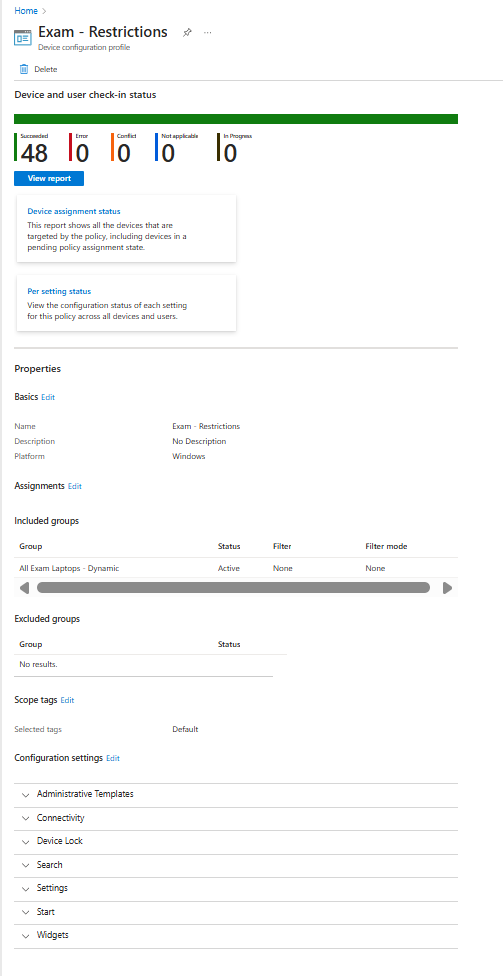
The final stage of the deployment was ensuring that all 48 devices successfully received the restrictive policies and automation scripts. I utilized the Microsoft Intune Admin Center to monitor real-time check-in status and policy compliance.
6.1 Deployment Success Metrics
The "Exam - Restrictions" configuration profile served as the primary benchmark for readiness. As shown in the deployment report, the profile achieved a 100% success rate, with all 48 targeted devices successfully applying the required administrative and connectivity constraints.
6.2 Granular Policy Validation
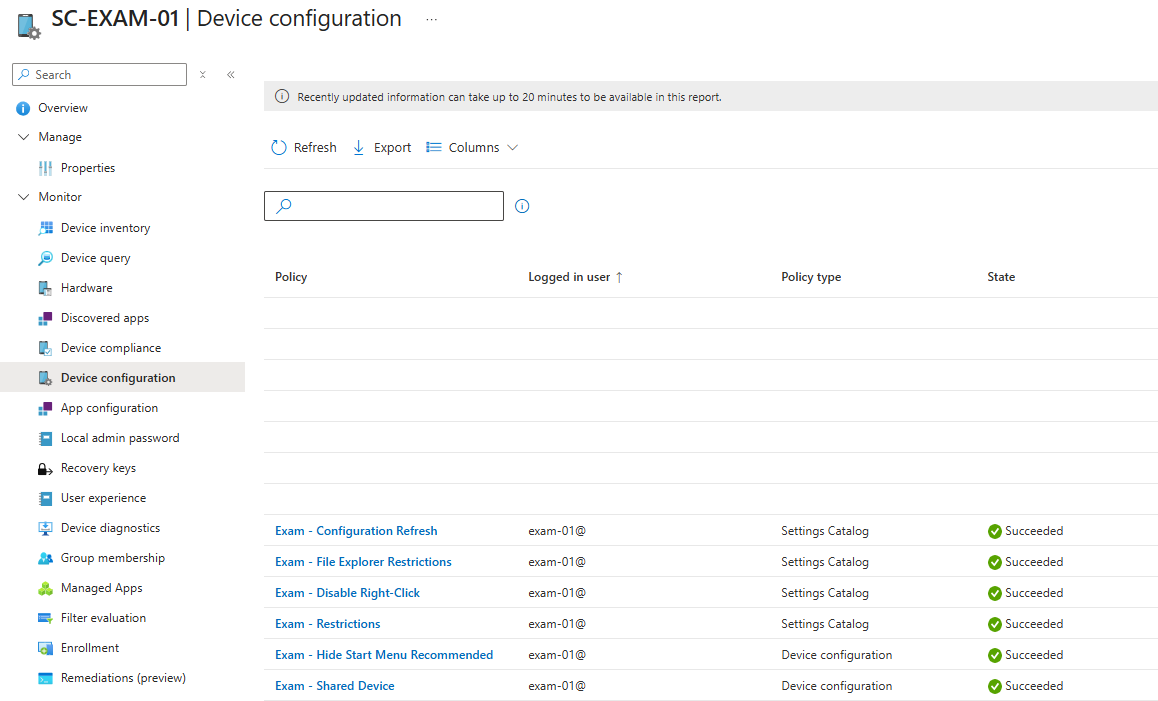
Beyond the aggregate reports, I performed granular validation on individual devices (e.g., SC-EXAM-01) to ensure the Settings Catalog and Device Configuration profiles were active. Key validated policies included:
The Result
The testing phase confirmed a zero-failure deployment. By verifying both the high-level device status and individual policy execution, I ensured that no device would enter the exam hall with a security loophole or a missing storage mapping.